Posts

Update Managed Metadata Field in SharePoint 2013

The following example update a term store field that allow multiple values. using (SPSite site = new SPSite("siteUrl"))                 {                     using (SPWeb web = site.OpenWeb())                     {                         PublishingWeb pubWeb = PublishingWeb.GetPublishingWeb(web);                         PublishingPageCollection pubPages = pubWeb.GetPublishingPages();                         string metadata = String.Empty;                         foreach (PublishingPage pubPage in pubPages)                         {   ...
Update people field

The following code sample add a new member to the SharePoint 2013 Community Site Member list.  It update the "Member" field. using (SPSite site = new SPSite("http://siteurl/"))                 {                     using (SPWeb web = site.OpenWeb())                     {                         SPList members = web.Lists.TryGetList("Community Members");                         SPListItem newMember = members.AddItem();                                               SPUser ensuredUser2 = web.EnsureUser("domain\\loginName");                       ...

Create Custom Content by Search Web Part

This is an example of appending additional query to the one that is in the query builder.  You can based on this one and build more complicated logic to alter your query on the fly. using System; using System.ComponentModel; using System.Web; using System.Web.UI; using System.Web.UI.WebControls; using System.Web.UI.WebControls.WebParts; using Microsoft.SharePoint; using Microsoft.SharePoint.WebControls; using Microsoft.Office.Server.Search.WebControls; using System.Collections.Generic; using SWP = Microsoft.SharePoint.WebPartPages; using Microsoft.SharePoint.WebPartPages; public class CustomContentSearchWebPart : ContentBySearchWebPart     { private string  additionalQuery = String .Empty;         [ WebBrowsable ( true ),          WebDisplayName ( "Additional Query" ),          WebDescription ( "Additional query for web part to ins...

SharePoint 2013 - Working with Display Template for Content Search Web Part

Image
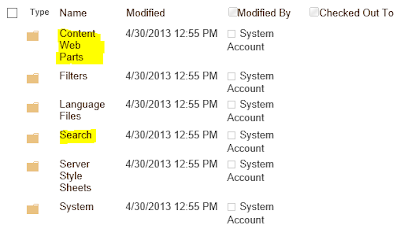
To create a custom display template, the best approach is to copy an existing one from Out-Of-Box display templates.  You can try each one and find the one that is closest to what you want to do. All the display templates are in the master page gallery.  To access it, Site Settings -> Master pages and page layouts -> Display Templates The Content Web Parts folder contains the display templates for content search web part and Search folder contains the display templates for the search results web parts. The easiest way to take a look at the display templates is to open the list in windows explorer.  On the ribbon, click on Open with Explorer option. You'll see a lot of html and js files in Content Web Parts folder.  The HTML files are the ones that you'll need to take a look.  The .js files are auto-generated when you add a new HTML file or update an existing one. For every content search web part, you usually have to specify two display tem...

Access Term Store Programmatically

To get the term store or term set or term, you need to get the TaxonomySession first.  You also need to reference Microsoft.SharePoint.Taxonomy namespace using (SPSite site = new SPSite ("")) {    TaxonomySession taxonomySession = new TaxonomySession (Site);    //get the default one    TermStore termStore = taxonomySession.DefaultSiteCollectionTermStore;    /* or you can get the one you want by looping through all the term stores      taxonomySession.TermStores    */    Group group = termStore.Groups[ "groupName" ];    TermSet termSet = group.TermSets["TermSetName"];    //you can further looping through all the terms in the term set    TermCollection terms = termSet.Terms    Term term = terms[0]; //For the term that has multiple languages, you can get the label in the specific language by passing in the LCID.   ...

SharePoint InputFormTextBox Rich Text Validation

I had some problems validating SharePoint InputFormTextBox with InputFormRequiredFieldValidator.  The problem is that it always shows the InputFormTextBox as invalid even tho I did have some content in the text box.  And if you click the submit button the second time, the validation just doesn't work any more. To get around it, I had to use the ASP.NET custom validator.  I found this way from other blogs online so it's nothing new.  However, there is a key attribut that a lot of blog forgot to mention.  Below is my code snippet. function ValidateMessageBody(source, args) {     try {         //Create Rich TextBox Editor control object          var docEditor = RTE_GetEditorDocument(source.controltovalidate);         if ( null == docEditor)             return ;         var strHtml = docEditor.body.innerText;   ...

SharePoint SEO friendly navigation

I recently started working with SharePoint 2010 for Internet site.  One of the most important elements for the Internet site is being SEO (Search Engine Optimization) friendly.  We all know that SharePoint by default doesn't render the navigation in a very SEO friendly way.  It's table with table with table ... In SharePoint 2010, there is a way to change that with one simple property.  It's UseSimpleRendering for SharePoint:ASPMenu control.  All you have to is to turn this property to true and SharePoint will render the top navigation in format of <ul>  and <li> instead of tables.  The HTML markup is so much smaller in size and SEO friendly.   To make it look nice, you'll have override a set of css classes for get the look and feel that you need. You can find more information here, http://msdn.microsoft.com/en-us/library/microsoft.sharepoint.webcontrols.aspmenu.usesimplerendering.aspx.